Saturday, August 20, 2016

Slic3r with GUI on OpenSUSE Leap 42.1

Just a working log as this was my probably 10th attempt to install Slic3r and I finally succeeded. So for the next time I reinstall OS, i need to have some records.

cd to RepetierHost directory
git clone https://github.com/alexrj/Slic3r.git

follow closely the step-by-step https://github.com/alexrj/Slic3r/wiki/Running-Slic3r-from-git-on-GNU-Linux (I used prereqs listed for OpenSUSE 13.2)

The following repos were added in the process:
http://download.opensuse.org/repositories/devel:/languages:/perl/openSUSE_Leap_42.1/
http://download.opensuse.org/repositories/devel:/languages:/perl:/CPAN-P/openSUSE_Leap_42.1/
http://download.opensuse.org/distribution/leap/42.1/repo/oss/

I also used http://software.opensuse.org/ to find a missing package, but already do not remember which one

When creating a launch script, had to use the absolute path for this line:
perl ./slic3r.pl $*

Finally, freeglut had to be installed (review the build error logs to see that GL\freeglut.h is missing).

This was solved by going to software management and installing packages freeglut-devel and perl-OpenGL

Finally after all the steps completed without errors, ./slic3r --gui should invoke a GUI window.

Some of the errors I saw in the process:

glversion.c:8:25: fatal error: GL/freeglut.h: No such file or directory

-> FAIL Configure failed for OpenGL-0.6704. See /home/user/.cpanm/work/1471705423.29187/build.log for details.

./slic3r --gui  Can't locate OpenGL.pm in @INC (you may need to install the OpenGL module)

Sunday, March 27, 2016

Hacking Honda Odyssey 2007 RES DVD-player: part 2

Part 1: Overview
Part 2: Hardware (This part)

Hardware


I finally built a PCB that works great and  even helped me to track down a nasty bug (took me a while, too. Hang on here with me, I'm actually going to tell you about it because it's fun).
But now, hardware.


Saturday, March 5, 2016

Hacking Honda Odyssey 2007 RES DVD-player: part 1

Part 1: Overview (this part)
Part 2: Hardware

Infotainment/NAVI system in Honda Odyssey 2007 is a huge monster – it has a luxury audio unit with 6 CD changer, a DVD-player, large NAVI screen in the dashboard, dashboard and steering wheel controls, rear screen with controls, IR remote and IR headphones. Awesome, isn't it?

Well, the problem is that we live in 2016 and it really does suck when you are stuck with the only choice between CDs and DVDs. If you want MP3, computer video, USB input, Bluetooth or anything else – your only option is the AUX input (composite video + stereo audio). It's definitely something, but if you are a maker, you can't be really satisfied with it, can you?

So I thought – why don't I look into how the hell this DVD works and if it would be possible to replace it with something more interesting and flexible – think a Raspberry PI or alike.


Sunday, March 30, 2014

Generate STM32 MCU pin configuration automatically on MCU

Building a project for STM32F4-Discovery I realized it's really hard to keep track of all the pins as they get configured in different files all over the project. It's either keeping a separate list of assignments and functions (maybe using STM's cube software) or just going through source files every time.

Or maybe just having MCU report how pins are configured?

Here's what I managed to get out of my STM32F407VGT6:
==============================
SMT32F407VG Configuration
------------------------------
PA0     Input           LOW,  NO_PULL
PA1     Input           LOW,  NO_PULL

Friday, December 6, 2013

Posting data from Arduino to Xively using bash

I decided to check if it is possible to post a sensor data to xively.com (ex cosm.com ex pachube.com) using bash only without building a complicated system like the one I attempted to build here: My first attempt to build a home monitoring/control system. And, in fact, it turned out to be quite simple.


We are going to need an Arduino with a temperature sensor that is able to answer to a string request with a float number representing sensor value. In my case, Arduino is programmed to send temperature in degrees Celsius if it receives a string "Get" over UART. So, what we need to do is to write a bash script that sends the string "Get" to a comport, recieves data and posts it to xively.com.

We are going to use /dev/ttyUSB0 comport (you may have a different one, so check this first), so let's declare a variable:


SERIAL_DEVICE=/dev/ttyUSB0

Now we can send data to the comport by just doing echo


echo "Get" > $SERIAL_DEVICE

And read data back by just doing read

read TEMP < $SERIAL_DEVICE

Here may be a few problems. Like speed of the port is not matching the speed of Arduino. Or the number of data or stop bits not matching. Or pretty much anything else not matching, so we have to make sure that the comport operates with the same parameters Arduino does. So before sending and receiving data to and from the comport, set its parameters:


stty -F $SERIAL_DEVICE cs8 9600 clocal -crtscts -cstopb -parenb -hup -ixany \
 igncr -ixoff -ixon -isig iexten >/dev/null

I was at this point able to communicate with Arduino, but I still had a problem of the Arduino resetting every time I echo to it. I was not able to overcome this problem, although it seems simple. Options like -hup (or -hupcl) and clocal have to solve the problem of DTR going down every time. But they don't. So what I do, is:
  1. I open the port:
    exec 3<>$SERIAL_DEVICE
    
  2. I wait for 3 seconds whil Arduino reboots:
    sleep 3
    
  3. I do my echo and read
  4. And I close the comport:
    exec 3>&-
    

So now I have the data from the sensor as a string and I just need to send this data to xively.com. I simply do that with cURL:


curl -ssss \
 --request PUT \
 --header "X-ApiKey: XXXXXXXXXXXXXXXXXXXXXXXXXXXXXXXXXXXXXXXXX" \
 --data "$DATA_STRING" \
 https://api.xively.com/v2/feeds/XXXXXXXXX > /dev/null

where $DATA_STRING is the data in json format:


DATA_STRING='{"version":"1.0.0", "datastreams":[{"id":"TC", "current_value":"'"$TEMP"'"}]}'


Here I had another problem when putting the variable directly into the string. Arduino sends "\r\n" as the end of the line when you use Serial.println(). And that '\r' totally corrupts the line. But we need the '\n' to detect the end of data. To get rid of '\r', you can use stty option igncr. So, the full script now looks as:
#!/bin/bash

#serial
SERIAL_DEVICE=/dev/ttyUSB0

#port setting
stty -F $SERIAL_DEVICE cs8 9600 clocal -crtscts -cstopb -parenb -hup -ixany \
 igncr -ixoff -ixon -isig iexten >/dev/null

sleep 0.1

exec 3<>$SERIAL_DEVICE
sleep 3

echo "Get" > $SERIAL_DEVICE
read TEMP < $SERIAL_DEVICE

DATA_STRING='{"version":"1.0.0", "datastreams":[{"id":"TC", "current_value":"'"$TEMP"'"}]}'
#echo "$DATA_STRING"

exec 3>&-

curl -ssss \
 --request PUT \
 --header "X-ApiKey: XXXXXXXXXXXXXXXXXXXXXXXXXXXXXXXXXXXXXXX" \
 --data "$DATA_STRING" \
 https://api.xively.com/v2/feeds/XXXXXXXXXX > /dev/null

So now save your script (I save it as ~/bin/xively), make it executable (chmod +x ~/bin/xively) and add it to the scheduler to execute regularly by typing crontab -e and adding the following line to your crontab:

*/2 * * * * ~/bin/xively

And now your sensor data is in the cloud! Check this out: https://xively.com/feeds/337476649

Saturday, April 13, 2013

USB composite (multi-interface) device with STM32F3-Discovery

There's no USB device library for STM32F3-Discovery published by STM. But it turns out we can use the library for other EVAL boards - STSW-STM32081STM32F10x and STM32L1xx USB full-speed device library. There's also a bunch of examples that go with this library, but they require some magic to work with STM32F3-Discovery hardware. They don't work out of the box. No worries, I'll teach you how to cast those spells.

Some basic information on projects structure that I use and links to resources can be found in these posts:
Links to USB resources on STM website
Creating a new project for STM32F3-Discovery in IAR from scratch

Let's go. Create new workspace, add Composite device example project from STM32_USB-FS-Device_Lib_V4.0.0 library. Create new configuration for STM32F3-Discovery (Project->Edit Configurations, press New..., type name STM32F3Discovery, select STM32303C_EVAL configuration as a basis, press OK). Make sure STM32F3Discovery configuration is active.

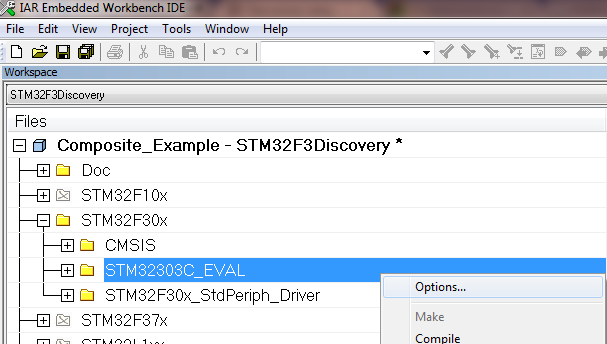
In file explorer, expand STM32F30X group, right click on STM32303C_EVAL group and select Options...

Tick Exclude from Build. Click OK.

In the same STM32F30X group, create a new group STM32F3_Discovery. You now need to add all *.c files from STM32F3_Discovery folder which is a part of STM32F3-Discovery firmware. There is no Discovery libraries in USB-FS-Device library!
Now right click on the project name in file explorer and select Options, then select C/C++ compiler category and Preprocessor tab. Delete the three paths that are for Eval board:
$PROJ_DIR$\..\..\..\Utilities\STM32_EVAL
$PROJ_DIR$\..\..\..\Utilities\STM32_EVAL\Common
$PROJ_DIR$\..\..\..\Utilities\STM32_EVAL\STM32303C_EVAL
Add path to the folder where Discovery library is, for me it is:
$PROJ_DIR$\..\..\..\..\..\F3_projects\Utilities\STM32F3_Discovery <- Change this to fit your system setup!!!
Also, add the following define: USE_STM32F3_DISCOVERY. Close the window.

Now you have to modify the code:

1. File platform_config.h:
Before
After
#elif defined (USE_STM32303C_EVAL)
 #include "stm32f30x.h"
 #include "stm32303c_eval.h"
 #include "stm32303c_eval_spi_sd.h"
#endif
#elif defined (USE_STM32303C_EVAL) || defined (USE_STM32F3_DISCOVERY)
 #include "stm32f30x.h"
 #if defined (USE_STM32F3_DISCOVERY)
  #include "stm32f3_discovery.h"
  #define Button_KEY BUTTON_USER
  #define Mode_EXTI BUTTON_MODE_EXTI
  #define LED1 LED5
  #define LED2 LED6
  #define KEY_BUTTON_EXTI_LINE USER_BUTTON_EXTI_LINE
 #else
  #include "stm32303c_eval.h"
  #include "stm32303c_eval_spi_sd.h"
 #endif //#ifdef (USE_STM32F3_DISCOVERY)
#endif

2. FIle mass_mal.c.
As this example is using SD card which is available on EVAL boards and we don't have that luxury on Discovery, I just mask out every function body in this file returning MAL_OK status. You should do it for every function! The example is just for one:
Before
After

uint16_t MAL_Init(uint8_t lun)
{
  uint16_t status = MAL_OK;

  switch (lun)
  {
    case 0:
      Status = SD_Init();
      break;
#ifdef USE_STM3210E_EVAL
    case 1:
      NAND_Init();
      break;
#endif
    default:
      return MAL_FAIL;
  }
  return status;
}

uint16_t MAL_Init(uint8_t lun)
{
#ifndef USE_STM32F3_DISCOVERY
  uint16_t status = MAL_OK;

  switch (lun)
  {
    case 0:
      Status = SD_Init();
      break;
#ifdef USE_STM3210E_EVAL
    case 1:
      NAND_Init();
      break;
#endif
    default:
      return MAL_FAIL;
  }
  return status;
#else
  return MAL_OK;
#endif //#ifndef USE_STM32F3_DISCOVERY
}

3. File stm32_it.c
Before
#if defined(STM32L1XX_MD) || defined(STM32L1XX_HD)|| defined(STM32L1XX_MD_PLUS)
void EXTI0_IRQHandler(void)
#elif defined (STM32F37X)
void EXTI2_TS_IRQHandler(void)
#else
void EXTI9_5_IRQHandler(void)
#endif

After
#if defined(STM32L1XX_MD) || defined(STM32L1XX_HD)|| defined(STM32L1XX_MD_PLUS) || defined(USE_STM32F3_DISCOVERY)
void EXTI0_IRQHandler(void)
#elif defined (STM32F37X)
void EXTI2_TS_IRQHandler(void)
#else
void EXTI9_5_IRQHandler(void)
#endif


After this is done, compile&download this firmware to STM32F3-DIscovery, then plag the USB cable to USER USB connector. Open Control Panel, then Device Manager, locate the USB Input Device with exclamation mark on it and update drivers from Windows Update for the device. After drivers are installed, Windows will recognize the device as Mass Storage + HID device.

Mass Storage will definitely not work. Windows will see it, but whatever you try to do with it, it will yell at you "Incorrect function"! HID will be working partially with STM HID Demonstrator - three of the LEDs will be working. To fix HID functionality you'll have to modify usb_des.c/h files to make USB descriptor match the actual hardware. If you really need this and fail to do it yourself, ask me in comments and I'll post HID descriptor that works with the Discovery button, four of its LEDs and one ADC channel.
And that's it. It's simple, I told you (at least when you have such a howto at your hands).
Click some banners, that helps. Thanks!

Friday, March 29, 2013

Links to USB resources on STM website

I think my older post Some resources for STM32 USB device programmers no longer represents how I look at USB firmware development for STM32, so...

This is just a list of links to USB resources on STM website. I'll use it as a reference for myself, so this post will be updated. The need for me to create this post is because STM finally succeeded in their quest to make any info unsearchable on their website.
If you think anything is missing, please let me know.
I'll split this by Discovery boards, F3 and F4, so apologies in advance.

Thursday, March 21, 2013

STM32 tools: New MicroXplorer generates the STM32 pinout initialization code

While I'm still very angry with STM for what they've done to all the community efforts by breaking, again, all the links on their *new* website rendering all our howtos to useless texts, here's a piece of *presumably* great news: MicroXplorer now is able to generate code. I haven't tried it though yet, so be the first to give it a go and describe your experience.

Saturday, February 2, 2013

Howto create a new project for STM32F3-Discovery in IAR from scratch (step-by-step)

Maybe everyone knows how to do it. I did not. I spent days, trying to understand the logic. It *seems* to me that I grasped it somehow, but I fail to see to what extent. But since it's working for me now, I hurry to write this down so I can always check back to this post and know how to start.

Prerequisites

So, what I have here is STM32F3-Discovery from STMicroelectronics. I also have IAR Embedded Workbench IDE installed. I had to fall back to IAR as CooCox IDE doesn't support STM32F3-Discovery and they don't tell when they are going to have it. This happens not the first time with them - STM32F4-Discovery still poorly supported and I'm not sure if STM32F0-Discovery is supported either. So I decided I'd go with IAR.

Tuesday, January 8, 2013

Can't find 0x210 words (0x210 withtotal) for psect "swtext1" in segment "CONST"

Have you ever seen something like this:

Error [1347] ; 0. can't find 0x210 words (0x210 withtotal) for psect "swtext1" in segment "CONST" (largest unused contiguous range 0x100)

Well, I crashed my head over the table the whole morning playing with buffers sizes, defines, deleting functions etc... The linker kept giving me the above error. Then I searched and fount this thread. One cool thing about this thread is that it contains a pretty cool step-by-step on how to trace to the root of the problem:

Monday, January 7, 2013

One more XBee tools-related bug

This time in (unofficial, unsupported etc) API Frame Maker tool from Digi.

This is, by the way, a very handy tool when it gets to understanding +XBee API operation. In seconds you can tailor a packet for all your needs and send it using X-CTU software (which feature-wise is exhostive, but usability-wise is a pain). Well, this API Frame Maker tools saves a lot of time.

But the bug took me a few hours of debugging (as usual, yes). It incorrectly calculates length for at least one API frame id - '0x90 Receive Packet'.

So be warned!

Sunday, January 6, 2013

The 0x97 bug is fixed in python-xbee!

I raised the issue described in Make a note: how an XBee replies to 'IS' command post on the package author's development group here. Paul replied, that the issue has been fixed for a while in the latest source code.

If you face the same issue (get 0x97 packet insted of 0x92 and the package fails to parse samples), here's what Paul advises:

As it happens, this bug has already been reported and fixed; a much more recent codebase which includes this fix is available at our Google Code source control: http://code.google.com/p/python-xbee/source/browse/. If you click the 'Download zip' link, in the approximate middle of the navigation bar, you will get the very latest version of the code.
I have not gotten around to updating the python-xbee distribution and documentation in quite some time; I apologize for this. 
Thanks again for this great package, Paul!

Saturday, December 29, 2012

Make a note: how an XBee replies to 'IS' command

This may save you a couple of days of debugging. Read on and make a note so when you don't understand why 'IS' command doesn't return packet you expect, you remember this post.

OK, when you configure an XBee to send samples periodically, it will send you 0x92 API frame once in a while. So you would expect to get the same frame in either sampling mode - 'periodic', 'on change', and 'querie'. But the thing is that in 'querie' case a remote XBee replies not with 0x92, but with 0x97 with sample data used as a parameter.

This is not stated anywhere in manual, I had to read it many times and finally debug step by step with python and Excel (yes, I use that great programming tool for modelling and visualisation).

I think +XBee Digi guys shell revisit their manuals and explicitly explain this.

Again, I am using python-xbee and I filed a bug. Here's my workaround about this (not a great one, I'm sure, but it works). You should find base.py in python-xbee lib and change the following:

def _split_response(self, data):
....
...
 # If the data field has no length specified, store any
            #  leftover bytes and quit
            else:
                field_data = data[index:]
                
                # Were there any remaining bytes?
                if field_data:
                    # If so, store them
                    info[field['name']] = field_data
                    try:
                        if info['command'] == 'IS':
                            packet['parse_as_io_samples'] = 'parameter'
                    except:
                        pass
                    index += len(field_data)
                break


Friday, December 28, 2012

My first attempt to build a home monitoring/control system

I've been playing with XBees for a while now and about two weeks ago I hit the wall - transparent UART mode has stopped being enough for my hobby. Sensors, devices to control, clocks to sync all aroung house. I had to move on - API mode, explicit addressing, frames parsing...

I, however, also spent some time recently studying some courses (mostly programming) on edx.org (this eats a lot of my time by the way). So I couldn't just get away with simple functional programming approach. I created many classes, I subclassed subclasses and have a pretty sofisticated class structure now in about 10 different python modules. Trying to get through all of this makes my head ake. However if you just look from a 'Main' program stand point, the whole thing is relatively easy and natural. Here how a blinking led example looks like:

def main():

    ## Create a coordinator. This is an XBee, connected to PC via comport
    ## 'COM4' is a comport to where XBee is connected
    ## 57600 is the comport speed
    ## "\x00\x13\xA2\x00\x40\x78\xFD\x76" is 64-bit address of the coordinator module
    ## 'coord' is a human-readable name
    coordinator = XBee24ZBCoordinator('COM4', 57600,
        "\x00\x13\xA2\x00\x40\x78\xFD\x76", 'coord')


    ##print "Hi, I'm Coordinator, my is hw #", coordinator.get_hwuid(),
    ##print 'and name is', coordinator.getName()

    ## Create a remote module. This is an XBee, hanging out somewhere in my house
    ## "\x00\x13\xA2\x00\x40\x78\xFD\x76" is 64-bit address of the module
    ## 'spalnya' is a human-readable name
    remote = XBee24ZBRemote('\x00\x13\xA2\x00\x40\x79\xB2\x71', 'spalnya')


    ##print "Hi, I'm a remote, my is hw #", remote.get_hwuid(),
    ##print 'and name is', remote.getName(), 'and address is', remote.getLongAddress()

    ## Now we are building the network topology
    ## We tell remote to connect to coordinator
    ## This tells remote where to send information and this
    ## also registers this remote with coordinator
    remote.connectToCoordinator(coordinator)

    ## Create a led
    led = LED()
    ## Connect led to remote, tell to which pin and in which mode
    ## remote.getPin('DO4') <- this is a pin on remote with name 'DO4'
    ## 'DO' is pin operation mode. Can be DO (digital out), DI (digital in),
    ## 'ADC' - analog input
    led.connectTo(remote.getPin('DO4'), 'DO')

    ## Tell led to turn on. Notice, after network topology is set (remote
    ## is connected to coordinator and the led is connected to a specific
    ## pin of the remote, we do not have to care about connections any more
    ## we just tell our led to switch on
    led.on()

    ## Digital input sensor (sempling LOW/HIGH level on an XBee pin)
    ## 'test' is a human readable name
    io = DI('test')

    ## connect this sensor to an XBee pin
    io.connectTo(remote.getPin('DI3'), 'DI')
    
    while True:
        ## Read pin
        io.read()
        try:
            ## switch on led
            led.on()
            sleep(2)
            ## switch off led
            led.off()
            sleep(2)
        except KeyboardInterrupt:
            break

    ## Halt XBee and close comport
    coordinator.halt()

Note, that we have to define topology first (like connectTo(coordinator)), but than I simply don't care HOW my led is connected to main server - via XBee, WiFi, TCP/IP, UART or else. I don't have to. I just tell the led to shine and it magically goes on. That's what I wanted to get and it seems I'll get that.

What I have now is a working prototype. I wouldn't been able to do even this without this great XBee library: http://code.google.com/p/python-xbee/


Thursday, December 20, 2012

Fahrenheit is not for embedders


When Fahrenheit came up with his temperature scale back in 1724, he clearly didn' think about embedded applications. If he would, he'd wait till Celsius invents his scale in 1742.

The problem here, if you use Fahrenheit to tell the temperature and you want to make a thermometer with a microcontroller, you will find out what is voltage on a sensor, calculate Celsius from it, and then convert to Fahrenheit by *9/5+32, right? (right, right, unless you've got a Fahrenheit sensor - which you most probably don't)

So you end up spending more cycles and getting a huge error as a result. That's crazy, guys!


Tuesday, November 13, 2012

Some resources for STM32 USB device programmers


UPDATE: I will collect direct links to libraries and manuals here on this post: 

Links to USB resources on STM website


Well, some of the some are not for STM32 only.

First and the best I found this tutorial - "USB in a nutshell". I just started reading it, but it lloks like it's a must for a starter like me. Check this out:

Endpoints
Endpoints can be described as sources or sinks of data. As the bus is host centric, endpoints occur at the end of the communications channel at the USB function. At the software layer, your device driver may send a packet to your devices EP1 for example. As the data is flowing out from the host, it will end up in the EP1 OUT buffer. Your firmware will then at its leisure read this data. If it wants to return data, the function cannot simply write to the bus as the bus is controlled by the host. Therefore it writes data to EP1 IN which sits in the buffer until such time when the host sends a IN packet to that endpoint requesting the data. Endpoints can also be seen as the interface between the hardware of the function device and the firmware running on the function device.
All devices must support endpoint zero. This is the endpoint which receives all of the devices control and status requests during enumeration and throughout the duration while the device is operational on the bus.

Isn't that crisp and clear?

Ok, going further. If you play with STM32F4-Discovery like I do, it may be a pain in the neck to find a helpful resource. E.g. you can't find USB OTG library from the board's page. You can't find it through web search either. You can't even find it with search on www.st.com website. Geee, I almost gave up on this.

Here's how to find it. Go to main page (their main page!), click "Micros and Memories", click "Microcontrollers", click "STM32 - 32 bit ARM Cortex MCU", switch to "Resources" tab, Click "Firmware" and look for "STM32F105/7, STM32F2 and STM32F4 USB on-the-go Host and device library" (the link will soon be broken - best practices from ST. Really, guys - your Digital Marketing department suck. Try to find this library with the search on your own site!).

There's even manual for this library (and a good one. I think...). I have no idea how to find it on ST website, but this time google is very useful. Here's a direct link to UM1021 User Manual.
And the last thing is HID Demonstrator. I don't know what is that exactly, I just know that this is useful and I soon will need this. So may you. Thus, a step back in resources and click "Drivers". Look for "USB HID Demonstrator release 1.0.2"

Go read guys. It's gonna take you a LOOOOT of time. But I think it's kinda worth it.

Tuesday, October 16, 2012

An expensive replacement for a power switch

For a battery powered device you most often would want to be able to switch the device on and off for it not to consume precious power when not needed. Easiest way is to insert a switch that would connect and disconnect battery from the circuit.

But that's not geek. Our way is to spend some cents for a couple of transistors, spend some minutes for PCB layout and give away an MCU pin - but as a bonus get for your device a switch-on controlled by a push button and an automatic switch-off feature. Here's how to do it (design is taken 100% from a perfect manual for Bob Parker's ESR meter).


I guess it's plain and simple. When the device is in it's off-state, both transistors are closed and there's no current drown from the battery. If you press the push button S1, transistor Q2 will open, connecting +5V to VDD and powering your circuit. No your circuit must take over and pull MCU pin UP. Q3 opens and takes over S1 that can be now released. Your circuit will now remain being powered until MCU decides it had enough already and commits suicide by pulling MCU pin low. That would be it's last action as both Q3 and than Q2 close, leaving circuit non-powered until you next time press S1.

P.S. Yes, I'm building an ESR meter for me. Thanks to Bob Parker for this perfect guide and thanks to Dave Jones for a perfect guide on how to apply it.

Wednesday, September 26, 2012

XBee introduction for Dummies (in a nutshell - XBee's cool!)

XBees with different antennas (Image source:  http://wireless-e.ru )

I've recently started playing with XBee from Digi. As usual with me I started with ruining one of the lent XBee's firmware and spent a week trying to get one back. That was a lot of fun and desperation - but I also learned a lot, found a lot of great materials (most of them on Digi's website, something like this: Designing a Sleeping XBee Sensor) and had a chance to talk to Digi support. All in all, I like this company, what they do and how they do it.

Just a few words about what is an XBee. I used to have an idea that it's just a wireless UART extension and was wondering why it costs so much (I paid for mine $17 a piece at Digikey.com). It turned out the thing is way better. Of course it is a wireles solution and it is able to:

1. Serve as transparent UART bridge (no surprise here)
2. Form different networks with point-to-point, star or mesh topology (this is why I bought them in the first place, but later about this)
This example setup is a combination of Start and Mesh topologies (Image source:  http://xbee.wikispaces.com/ )

3. Communicate to othe XBees on such a network through API commands (that is superior to transparent bridge in a way that it has rich addressing capabilities, allows to execute a remote AT commands, control remote units, ensure data integrity and even flash new firmware remotely)
4. Easily extensible with a led, a resistor and two buttons: led would show a module state, and buttons control network behaviour (wake up, ping remote, leave network) and mudule reset.
5. Has digital IOs - you can control them or sample them remotely (just add power, a transistor, a relay and you've got a wireless switch)
6. Has analog sampling channels - wire a temperature sensor to it and it will send values over network without an external MCU
7. Has got impressive performance. With my flat build out of metal/concrete with walls of 45 cm, it reaches every single corner of my flat. That wifi fails to achieve (although I tend to think this has got something to do with data throughput) and Bluetooth not even trying. I thought I would need to put a few router in between coordinator and end devices to relay the link, but it was not needed. The signal and data perfectly goes through!

So it really looks like a perfect solution for tasks such as home automation. With XBee the design pretty much becomes an integration question. Decide what you need, grab an XBee, add some spice and you're done. I built a wireless sensor that reads my water consumption just in a few evenings.

There's really a lot of information on the net already, but also as I said very useful forums and support community from Digi. If you were thinking about how to pass information from eg sensor to a control hub, go grab a few XBees and start experimenting. I also suggest that you read this unofficial FAQ to dive fast into the topic as well as check out this buying guide from Sparkfun. Also if you are going to buy XBees you will really need something to connect it to a PC with. A very basic thing is an USB-UART converter with just TX/RX signals. You can really get away with this, but it's going to be somewhat painful. You should look (or upgrade the basic variant) for something that provides:

1. Regulated power (3,3V !!!)
2. RX/TX signals (3,3V !!!)
3. Reset signal (for module to automatically reset when uploading firmware) (3,3V !!!)
4. Reset button (so you can manually reset the module)
5. DTR signal (to be able to jump to boot loader) (3,3V !!!)
6. Association LED (so you can say at a glance if XBee is powered, connected or what the error is)
7. Commissioning button (so you can test the link and control XBee a bit)
Such an adapter can be DIY from e.g. USB-UART converter, schematic is super-simple, the trickiest part is the XBee connector that is not regular 2,5 mm connector (0.1"), but 2,0 mm (0,78").

Next time I'll probably tell you how to easily turn a router into an XBee gateway ($110 worth!) :-)

Happy getting rid of wires!

Cheers!

Monday, September 24, 2012

Hacking Hakko FX-888 - with a common cathode LED

I've got Hakko FX-888 as my main working tool. Great tool, one thing is annoying though - you can't tell at a glance if it's on or off. I decided I'll hack it as Dave brilliantly suggested in this post: EEVblog #242 – Hakko FX-888 Soldering Iron Hack. However I didn't check before ordering and got myself a bunch of common cathode LEDs. Gosh, had to think myself :-)

OK, just in case you'll need I'll save you some minutes. Here's the schematics:
You'll also have to short the 2k2 resistor on PCB, or replace it with 0 Ohm jumper. Have a look at the video Dave posted for an idea on how to mount this within Hakko body (heat glue gun of course).

Happy soldering!
Cheers!